
Documentation
How a Capstan workspace actually works.
Written for the person administering one, and for anyone evaluating who would rather read the mechanics than the pitch. Documentation lives here, on this site, beside the pages it links to. There is no separate documentation site and there will not be one.
Everything below describes what the product does today. Where something is built with a limit, the limit is in the sentence rather than in a footnote, and where something is not built it says so. Prices appear on the pricing page and nowhere else, because they are adjusted by country and belong in one place.
Getting started
What happens when you create a workspace? Where does the data sit? What should you do first?
What happens when you create a workspace
Signup asks for two things, a company name and an email address. There is no password anywhere in the product: you ask for a one-time code, it arrives by email, and you enter it. A valid code is proof you control that address, so for a new address the same step that signs you in also creates the workspace, already active. Nothing is provisioned twice if you submit twice, and an address that already owns a workspace gets the same answer as a new one, because a signup form that tells you an address is taken is an account enumeration tool.
The person who signs up holds the Owner role from that first moment. They are an administrator identity, not automatically an employee: they get no employee record until they create one, which is a one-time action from their own profile, and until they do they occupy none of the free plan's places. An administrator here is an employee who also holds an administrative role, rather than a separate kind of user.
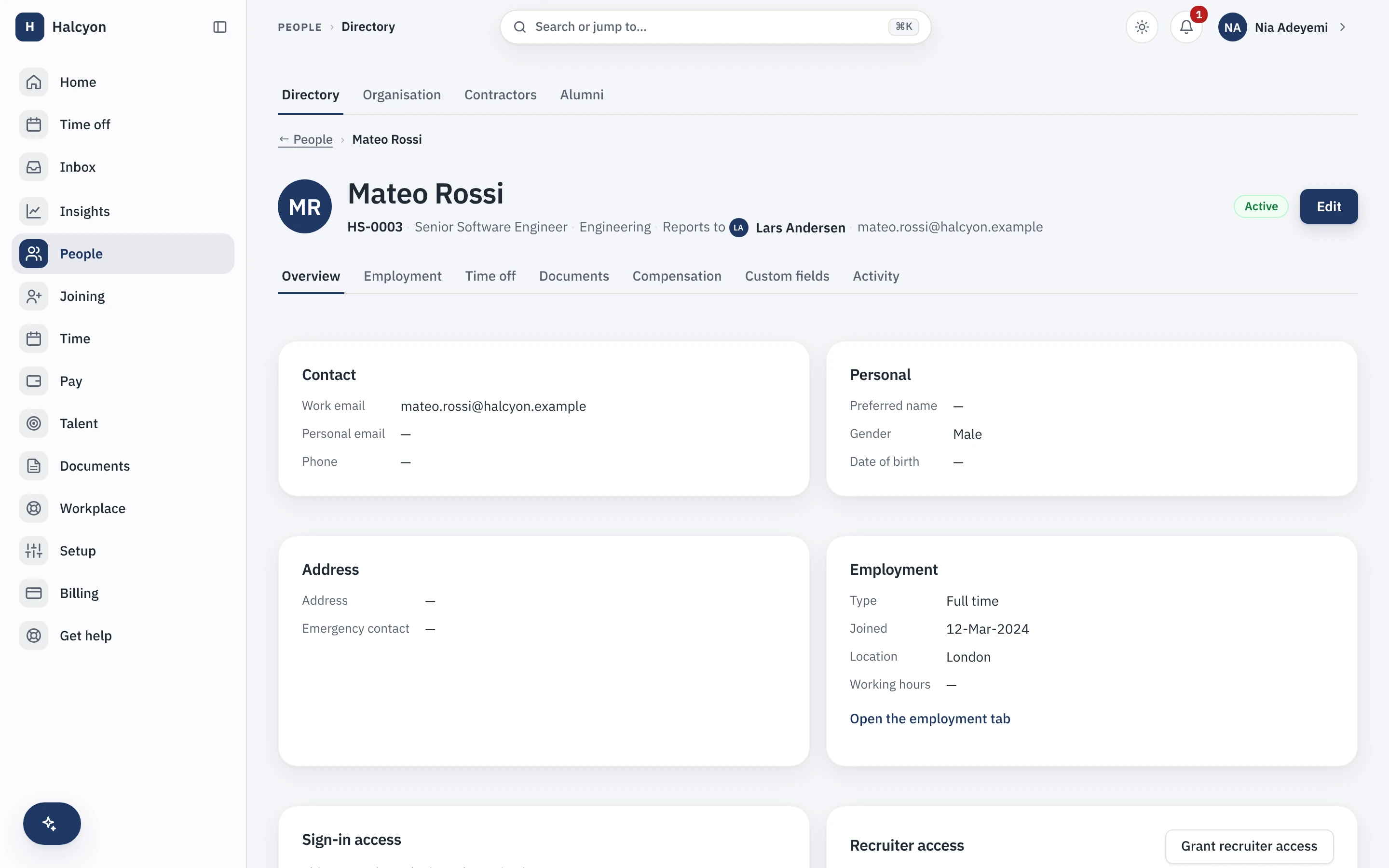
A new workspace is not empty. It arrives with a set of standard roles as real, editable roles, and with a standard set of approval workflows and a standard set of letter templates as editable drafts. The drafts matter: a draft workflow routes nothing and a draft letter template generates nothing until an administrator reviews it and publishes it. That is deliberate, so nothing runs on a default nobody read, but it does mean the first approval you expect to see will not appear until you publish the workflow behind it.
One email address may own one workspace in a region. One person belonging to several workspaces is not built: it needs a membership model the product does not have yet, and nothing here forecloses it. If you administer two companies today, you need two addresses.
Your region is settled before you reach the form
A region is a self-contained deployment serving its own hostname. One database is one region, nothing is global, and no key exists that reaches from one region into another. The consequence is the useful part: the app you sign into is your region, so the choice is made when you pick which app to sign up in, and it is never a field on the signup form. It is shown on the form and in your settings, and it is permanent afterwards. A residency commitment you can quietly change later is not a commitment.
Region is not a column on your records, it is a property of the deployment holding them, which is why there is no setting that moves it and no support request that can, and why there is nothing to edit. The EU is the region live today, with data in Frankfurt and compute in Amsterdam. What that structure does and does not cover, meaning where requests are currently served from, which vendors are engaged and what reaches each of them, how encryption keys are held and rotated, and what our own support staff can and cannot reach, is set out on the security page, which is written for a reviewer holding a questionnaire. It is not repeated here.
The setup checklist, and the order it enforces
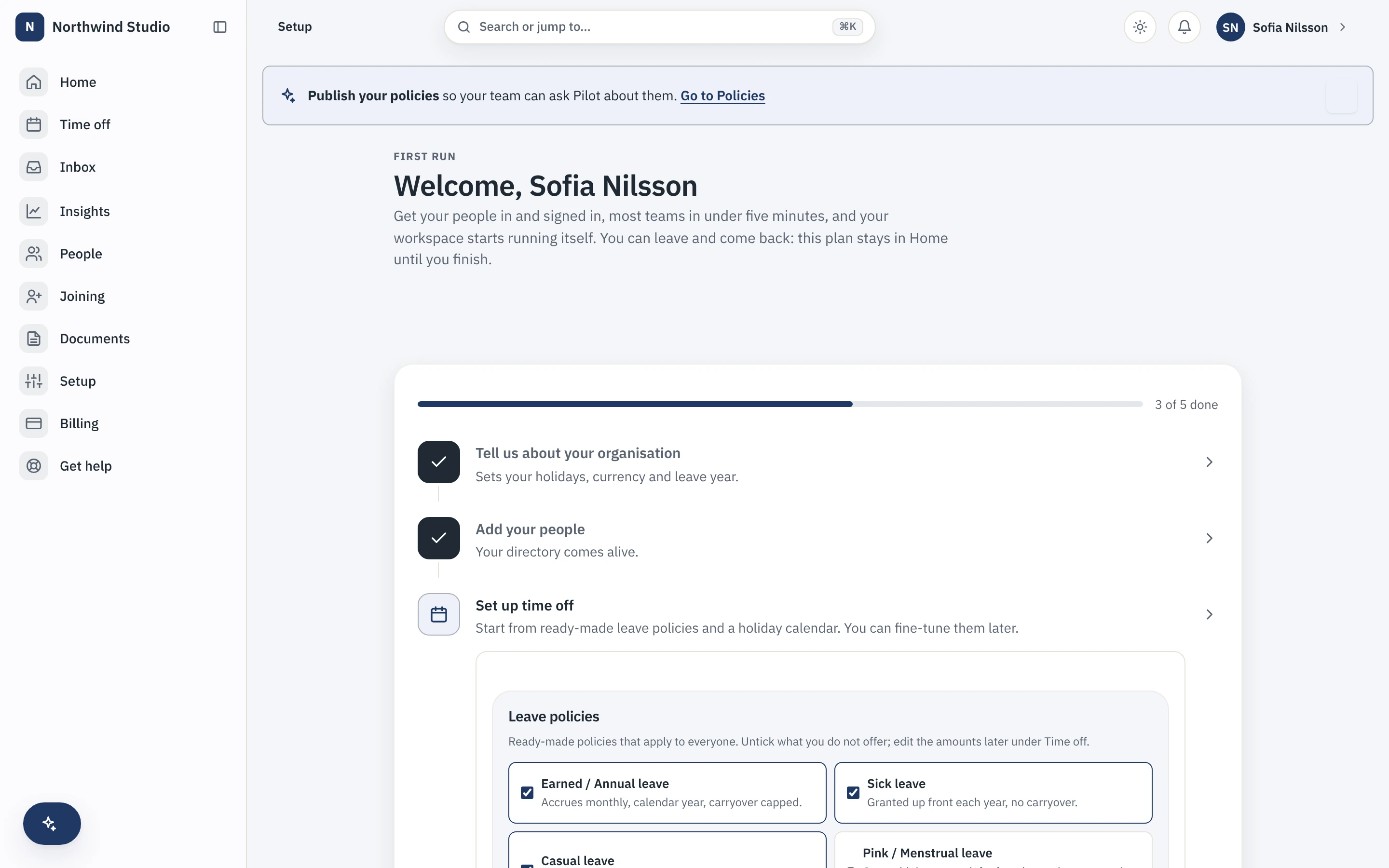
The first thing an administrator sees is a setup checklist, and it is sequenced rather than a list of suggestions: a later step stays locked until the required steps before it are done, because you cannot place a person in a department that does not exist, and you cannot run leave without a policy and a calendar. It ticks itself off from live data rather than from a box you check, it points at the one next thing to do, it retires itself when everything is settled, and an employee never sees it.
There are six steps. The first four lock what follows them; the last two never lock anything and are marked below.
- Set up your organisation Your legal entity, your work locations and your departments, since everything else hangs off it. You cannot place a person in a department that does not exist.
- Add your people One at a time or in bulk, placing each of them in the structure you have built.
- Invite your people Until an invitation is accepted you are the only person who can sign in, so nothing anyone else does can start before this.
- Set up time off Both your leave types and a holiday calendar, because leave cannot run without either and nobody can apply for a day until both exist.
- Set your go live date optional The day your team starts marking attendance here. Days before it do not count as absence or loss of pay, so nobody is docked while they are still on your old system. Worth setting even though nothing waits on it.
- Move up when you outgrow twenty optional The whole platform runs without buying anything, all fourteen modules on every plan; moving to a paid plan only lifts the twenty-person cap, on any day you like.
Getting your people in, and giving them a way in
People can be created one at a time or imported in bulk. The import is validate-first: a dry run puts every row through the real insert, catching duplicate employee codes and email addresses against the directory you already have, and then rolls it back, so you see exactly what will import before anything is applied. Each row is applied independently, so one bad row does not lose the other ninety-nine. The downloadable template carries dropdowns for the placement columns and a second sheet holding your own departments, designations, work locations and entities, plus the rules. Placement is matched by name, and a name that does not match is reported as a row error rather than quietly creating a new department.
A login is separate from an employee record. An administrator invites a person by email; they prove control of that address with the same one-time code everyone else uses, and a member login is bound to their employee record on acceptance. A real import invites everyone it adds, each with their own invitation and their own email, never one shared message. The invitation is consumed the first time, and every sign-in after that runs off the login itself, so nobody needs re-inviting.
An employee's own hub is called My space: their profile, leave, attendance, documents, policies, tickets and anything waiting for them to acknowledge. Ownership of the workspace can be handed to another employee who has a login. The handoff grants the new Owner before it drops the old one, so the workspace can never be left without an Owner, and the person handing over becomes an ordinary employee.
Core concepts
What is a workspace the unit of? What separates a person from an employment stint? Why is "who can see what" three questions rather than one?
Workspace
A workspace is one customer company, and it is the unit of four separate things: isolation, billing, residency and deletion. Every operational record belongs to exactly one workspace, and that ownership is enforced in the database rather than in application code, so a query that forgot to filter still cannot cross the boundary. Child records carry a key that ties them to a parent within the same workspace, so a record cannot point at another workspace's record even if a bad identifier were written.
A workspace is active, or it is held. There are two ways to be held and they are deliberately told apart, because saying the same thing to both would be a lie to one of them: a workspace awaiting email confirmation, and a workspace suspended for an unpaid invoice. Suspension changes the reach of the people in it and touches no data at all, which is why reinstating one is instant and complete rather than a recovery. A person whose own account is disabled, a leaver past their last working day, gets a third, different answer.
The person record and the employment stint
These are two records, and keeping them apart is what makes rehire work. A person is the human: one record, kept forever, across every time they work for you. An employment is one stint, with its own employee code, join date, engagement type and status. A person may hold several stints in sequence but never two active at once, which the database enforces rather than the interface, so overlapping history is expressed as closed prior stints rather than parallel live ones.
A rehire is a new stint on the existing person. Nothing is resurrected from the previous one beyond what genuinely belongs to the human: the new stint's leave ledger and attendance start empty. Reporting lines point at a stint rather than at a person, so an old manager relationship stays as history and does not leak into the new engagement.
The status a stint is in decides two counts that people routinely assume are the same number, and are not.
| Status | What it means | Uses a free place? | Billed as a seat? |
|---|---|---|---|
| Pre-joining | Hired, start date not reached | No | No |
| Active | Working | Yes | Yes |
| On notice | Exit accepted, last working day not passed | No | Yes |
| Exited | Last working day passed | No | No |
Roles, scope and sensitivity: three questions, not one
"Who can see what" is three separate questions here, answered by three separate mechanisms, and they compose rather than substitute.
- What you may do
- Comes from the roles you hold, and from nothing else.
- Whose records you may reach
- Comes from the scope on each role assignment: an entity, a location, or a department and everything under it. An assignment with no scope reaches the whole workspace, which is the correct default for an Owner and the thing to be careful about for anyone else.
- Which fields you may see
- Comes from sensitivity grants, held per role, for three classes: compensation, national identifiers and bank details.
The ten roles a new workspace arrives with
- Owner
- HR Administrator
- People Manager
- Payroll Administrator
- Finance
- Compensation Manager
- Recruitment Manager
- Helpdesk Manager
- IT and Asset Manager
- Auditor (read only)
All of them are ordinary editable roles rather than fixed ones, and the specialist roles carry capabilities only. Access to compensation, national identifiers or bank details is never bundled into a role by default: it is an explicit grant, made by the Owner, so the starter set is least-privilege on the day it arrives rather than after you audit it.
There is a fourth question that looks like the first three and is not, and it is worth knowing because the screen looks identical in every case. If someone cannot do something, it is because they do not hold the permission, or because a free workspace has reached its twenty-active-employee cap, or because the workspace is suspended over an unpaid invoice. A module is never the reason: every plan, the free one included, carries all fourteen. Those are three different answers with three different fixes, and the product keeps them apart deliberately rather than collapsing them into one refusal. A workspace in billing grace keeps every permission its people ever had.
Administering a field is not the same as seeing it
An administrator can write a national identifier or a bank detail they are not allowed to read back. That is intended, and it is why the write endpoints acknowledge what you sent rather than echoing what is stored. Administrative capability and sensitivity sight are separate grants, and holding the first does not imply the second.
A field you may not see is absent from the record you are given, not present and blank. That is a deliberate difference: a blank field tells you a value exists and is being withheld, which is itself information about a colleague's pay or identity documents. Absence tells you nothing.
Your own record is the exception, and it is not modelled as a grant. Seeing your own pay, your own identifiers and your own documents is a first-class branch of every sensitivity check, so it does not depend on holding a role, cannot be revoked by editing grants, and never needs provisioning one employee at a time. Reaching a colleague in the directory, meanwhile, does not imply reaching their documents: document access is its own capability, and it can be scoped to a department or entity like any other.
Workflows, approval chains and checklists
A workflow is a named process with ordered approval steps, and it is versioned. A version is a draft while you edit it, and publishing freezes it: editing a published workflow forks a new draft, and publishing that one archives the previous version. A request already running never moves to the new version, so what was approved is always what was in force at the time.
Approvers are chosen from a closed vocabulary rather than written as an expression. A step routes to the reporting chain at a stated depth, so one hop up is the manager and two is the manager's manager; or to the head of the subject's department, walking up to an ancestor department until it finds one; or to the holders of a named role, optionally only those whose own scope covers the subject; or to a named person; or to holders of a role who also hold a stated sensitivity grant. There is no scripting and no escape hatch, which is the point: a rule that cannot be written cannot be misread.
Each step says whether any one approver is enough or all of them must decide, and what a rejection does: end the request, or send it back to the previous step for another round. A step can escalate after a stated period, which adds approvers rather than replacing them. A step can carry a condition on the request's context, an amount over a threshold for instance, and a step whose condition does not hold is skipped rather than sent to an approver with no decision to make. A decision can be delegated, and the delegate then decides under their own name with the delegation recorded.
Two behaviours are worth knowing before you design a chain. Approvers are resolved once, when the step becomes active, and are not re-resolved while it waits, because an approval has to be attributable to the person who was actually asked and a reorganisation must not silently swap them mid-request. And a step that resolves to nobody, an employee with no manager, a role nobody holds, is routed to the workspace administrators and flagged, rather than being skipped or left to block. A process must never quietly lose an approval.
A checklist is the other primitive: ordered items against a person or an event, each with an assignee rule from the same vocabulary and a due date offset from the start. You bind one to hire and one to exit, either for the whole workspace or per legal entity, since entities often onboard differently. An item is a task, an acknowledgment, or a document upload. The document upload type is a stated limit: the item type exists and its completion is not wired up yet, so treat it as a prompt rather than as a control.
Documents, letters and policies
A document is a record in the database plus a file in your region's storage, and the split is the whole security model. Every access decision is a read of the record under your own identity; only if it is visible to you does the product ask storage for a short lived link to that one file. Storage never sees your identity, your roles or your workspace, and it never makes a decision. Storage keys carry no meaningful name, so a leaked key reveals nothing and renaming a document never touches the file.
Letters are generated from templates built out of a closed set of merge fields, referenced as real fields rather than typed as placeholders in a string, so a template cannot contain a placeholder that does not resolve. A template may reference sensitive fields from at most one class, and that class is frozen onto the version when you publish it and then decides who can read the letters it produces. Generation resolves every value under the generating person's own grants, stores a snapshot of what was resolved, and files the result as a document. Regenerating produces a new document rather than overwriting one. You can put a letterhead behind all of it: header and footer text, a logo and a signature image, embedded in the output rather than fetched from anywhere.
Policies are versioned wrappers around a document, with an effective window and acknowledgment tracking. A published policy is never hard deleted: you retire it by archiving the published version, which leaves every version, its audience and the whole acknowledgment record exact, and bringing it back is an ordinary edit. Nobody is chased to acknowledge a policy whose window has passed. An acknowledgment is a request that a named person confirms they have read something, and compliance is computed from those records rather than tracked by hand. Acknowledging is not a bare click: the employee types their full name, so what is stored is a typed-name attestation with the name, the time and the actor. Drawn signatures and a signed receipt document are not built.
The activity log
Under Administration, an administrator reads their own workspace's activity log: every recorded action, newest first, filtered by action, record type or date range, paged, and exported. Identifiers resolve to a person's name, and a change made by the system rather than by a person shows as exactly that.
It is append-only. Entries are never edited and never deleted, and they are written where the change actually happens rather than from this screen, so the screen is a read surface and cannot be used to author history. It is scoped to your workspace whoever is asking, and the endpoint checks for an administrator in its own handler rather than leaning on a broader read rule. The practical result is that you can answer your own auditor from your own workspace, without opening a ticket with us and without taking our word for what happened.
Plans, seats and modules
What does the free plan carry? How does the cap behave? What does moving to a paid plan change?
What the free plan carries
The free plan is the complete product, all fourteen modules included, capped at twenty active employees. There is no subscription behind it, nothing is billed, and so there is nothing that can lapse. A plan differs from another plan in exactly one way, enforced in the database: how many active employees it may carry. Every plan runs the identical product, all fourteen modules included, so there is no feature-by-feature gate and no module wall.
The cap counts active employees, which is the reading that favours you: a hire who has not started and a leaver working out their notice do not use one of the twenty. It is enforced at the point an employment is activated, not in the interface, so the overnight job that activates a start date hits exactly the same wall a button does. The twenty-first concurrently active employment is refused rather than silently absorbed, an exit frees a place, and a rehire fits back into it.
Paying does not take the twenty away. A paid plan includes them, so it charges for the employees past twenty rather than for your whole roster, and the twenty-first person costs one seat rather than twenty-one. That per-seat charge is the whole bill, because every module is included on every plan and nothing is metered to an invoice on top of it.
Growth is the single paid plan, and every paid workspace runs the identical product on it. Every figure is on the pricing page, which is the only page on this site that carries one.
The seat counts, and which is which
The product keeps two counts on purpose, and confusing them is the most common billing question. The cap count is active employees, and it is what the free plan's twenty measures. The billed count is your roster as of today, meaning distinct people who have joined, whose last working day has not passed, and who have not exited.
So someone serving notice is billed and does not use a free place. That is not an accident of two folds drifting apart: they are computed from one definition each, and the billed count is the same number as the "people in your organisation" figure on your directory, so your invoice and your directory cannot disagree. What happens when you hire is set out under terms and billing.
Twenty appears in a third place, and it is a third rule rather than either of these two. A paid plan includes twenty seats: the plan charge is your billed count less twenty, so a roster of twenty-one is one billable seat and a roster of sixty is forty. It is subtraction, not a limit, and it applies to the plan, which is the only charge: every module is included on every plan and adds no line of its own. So the cap decides whether you must pay at all, the billed count decides who is counted, and the included seats decide how much of that count the plan charges for.
The modules, and how upgrading works
All fourteen modules are included on every plan at no extra charge, the free one included, and are present the moment a workspace is created, each listed with what it does and what it deliberately does not do on the modules pages. There is nothing to switch on one by one and no module wall: a workspace on Free has exactly the same modules as one on Growth, and moving between the two changes only the seat cap.
Self-serve plan checkout is not built yet, and the upgrade path is honest about it. You record an upgrade request from your Billing page, supplying the details needed to raise an invoice by hand: the legal entity, a billing contact and email address, a billing address and a tax identifier, with a purchase order reference and a company registration number if you use them. You may hold one open request at a time, and someone here grants the tier. Granting the plan lifts the twenty-person cap; the modules are already there, so nothing about them changes.
Because every module is included on every plan, none of them adds a line to the bill: the plan's per-seat price is captured when the plan is granted and is the only charge. A workspace that moves back to Free keeps its modules and its data, because both plans carry the identical feature set; dropping to Free only reinstates the twenty-active-employee cap.
Terms and billing, in outline
Your plan and the whole included module suite sit on one bill, however large your team, because every module is included at no extra charge. Billing is monthly, per chargeable seat above the first twenty, with no prepaid term and no lock-in: you pay for the seats you use, month by month. The prices are on the pricing page.
When a monthly invoice goes unpaid the workspace enters a grace period and access is uninterrupted, because a customer who is late is still a customer. If it stays unpaid past the grace period the workspace is suspended: people cannot sign in, and not one row of your data is touched. Your export keeps working throughout, which is the subject of the next group. The full detail, including the reminder ladder and what a paid invoice shows you, is on the pricing page and on the security page.
Your data
What can you take out, and in what format? What happens if you leave, and what survives it?
The export, and what is in it
An export is requested by the workspace Owner, which is a stricter check than administrator on purpose, and it is built in the background as a single uncompressed tar archive. Tar is a public, documented format that any operating system can open, because a portable export in a format only we can read is not portable.
The archive opens on a manifest listing every file it contains and how many records are in each, so the archive states its own completeness and you can check it. Then one JSON file and one CSV file per record type: the JSON is authoritative and the CSV is a flattened convenience so a spreadsheet opens it. Your documents ride along as their original files. Sensitive values are decrypted in the export, since it runs under your own authority over your own data, and a value that cannot be decrypted is absent rather than shipped as ciphertext.
What is covered is the employee master and everything hanging off it.
In the archive today: seventeen record types
- People
- Employment stints
- Departments
- Work locations
- Designations
- Legal entities
- Custom field definitions
- Custom field values
- Leave types
- Leave requests
- The leave ledger
- Attendance days
- Punches
- Generated letters
- Your activity log
- Document metadata
- The document files themselves
The set grows with the data model, so this is what the manifest lists today rather than a closed promise about what it will always list.
Two properties are worth stating plainly. The download link is short-lived and expires, and requesting an export is written into your own activity log. And the export deliberately does not sit behind the suspension check: it works while an invoice is unpaid, while a workspace is suspended, and on your way out. Data you cannot take with you when you are unhappy is not really yours.
Deleting a workspace
Deletion is Owner-only and deliberately awkward: you type the workspace name back, and then confirm a second time. It is then scheduled rather than executed, sitting in a cooling-off window of seven days by default, during which you can cancel it. Within that window our staff can also restore it if you ask, and that restore is audited. Once the window elapses there is nothing to restore, by design.
When it runs, the encryption keys for your workspace are destroyed first. That is the load-bearing step: the ciphertext becomes unreadable even from a backup taken before you left, because there is no key left to unwrap it and none can be reconstructed. Your files are then deleted, and every record carrying your workspace's identifier is purged apart from one named allowlist, after which a scan confirms nothing else survived. The workspace itself remains as a tombstone so the retained records still resolve.
The allowlist is the financial record, which carries statutory retention floors: invoices and their lines, payments, refunds, credit notes, usage records, and the subscription and its history. Everything else goes, including your own activity log, which is yours to lose on departure. Deletion is not blocked by billing state either.
One boundary, stated because it decides who a request goes to. For your employees' data you are the fiduciary and Capstan is the processor acting on your instructions, so an employee's access or erasure request reaches you, and you answer it with the tools here. The product builds workspace-level machinery; there are no person-scoped export or erasure endpoints today, and that is a stated gap rather than an oversight.
Where this page stops
What does this page summarise rather than cover, and who covers it properly? And what if it still does not answer your question?
Webhooks, the API and the payroll export
All three are documented properly on the integrations page, and this page does not duplicate it. In one paragraph: webhooks are signed, retried and logged per attempt, registered by an administrator over https only, drawn from a closed event catalogue, and carry pointers rather than copies of your data. The API is documented and reached with a session token; there are no API keys or personal access tokens today, which is a real constraint on server-to-server use and is stated as one. Contractor tax rules are country packs your workspace configures per jurisdiction, edited as data rather than shipped as a release.
Payroll is a handoff, not a black box, and the wording matters. Capstan compiles your inputs and hands a documented, partner-neutral export to your payroll partner. It does not run, calculate or file payroll, and no page on this site will ever say it does.
When this page does not answer it
Write to support@usecapstan.com. A useful message names your workspace, what you expected to happen and what happened instead; if a screen refused you, quoting the refusal exactly is the fastest route to an answer, because the product deliberately distinguishes between a missing permission, a free workspace at its twenty-active-employee cap, and an unpaid invoice.
Support has no standing access to your data. Our staff belong to no workspace, so the database denies them your records by default. Helping with a ticket that needs your data means asking you for consent from inside the app: time-boxed, scoped to read-only or read-with-sensitive-fields, tied to a stated reason, revocable by you instantly, and written to your own activity log as well as ours. You approve it or you do not; there is no override on our side. That mechanism is described in full under support access.
For the parts of the product this page summarises rather than covers, the specific pages go deeper: the product page for the core module by module, the module pages for each module and its non-goals, pricing for every number, integrations for the developer surface and security for architecture and data handling. A question that this page should have answered and did not is how we decide what it says next.
Common questions, answered completely
Is there a separate documentation site?
No, and there will not be one. Capstan documentation lives on this page, alongside the pricing, module, integrations and security pages it links to. A separate documentation site would be a second thing to keep true, and a page that is not kept true is worse than no page.
Is there a password?
No. There is no password anywhere in the product. You ask for a one-time code, it arrives by email, and you enter it. The code is single use, expires shortly after it is sent, limits how many attempts you get, and asking for another one obeys a short cooldown. For a brand-new address the same step that signs you in also creates your workspace, because a valid code is proof you control the address.
Can one person belong to more than one workspace?
Not today. One email address may own one workspace in a region. Belonging to several workspaces needs a membership model the product does not have yet, so if you administer two companies you need two addresses. Nothing in the current design forecloses it being built later.
Can I change my region after signing up?
No. A region is a self-contained deployment: one database is one region, and the app you signed into is your region. Because region is a property of the deployment rather than a field on your records, there is no setting that moves it and no support request that can. That permanence is the point of the residency commitment.
Does the person who created the workspace use one of the free twenty places?
Not automatically. Signup creates an administrator identity, not an employee record, so the founder occupies no place until they enrol themselves as an employee, which they can do once from their own profile. The free plan counts active employees only, so a hire who has not started and a leaver working out their notice do not use a place either.
Why is the standard workflow I expected not routing anything?
Because the standard workflows and letter templates a new workspace arrives with are editable drafts rather than published versions. A draft routes nothing and generates nothing until an administrator reviews it and publishes it. That is deliberate, so no process runs on a default nobody read, but it does mean the first approval you expect will not appear until the workflow behind it is published.
Can I still export my data if an invoice is unpaid?
Yes. The export endpoints deliberately sit outside the suspension check, so an export works while an invoice is unpaid, while a workspace is suspended for non-payment, and on your way out. Deletion is not blocked by billing state either. Data you cannot take with you when you are unhappy is not really yours.
Does Capstan run payroll?
No. Payroll is partner-integration mode: Capstan compiles your inputs and hands a documented, partner-neutral export to your payroll partner. It does not run, calculate or file payroll, and it does not move money.
The quickest way to read the rest is to open a workspace.